
How to Make a State Property Meme AI Video From One Photo (2026 Guide)
Turn one photo into a State Property or Hit the Road Dude AI video. Follow the steps, watch a real example, and check audio, credits, and photo requirements.
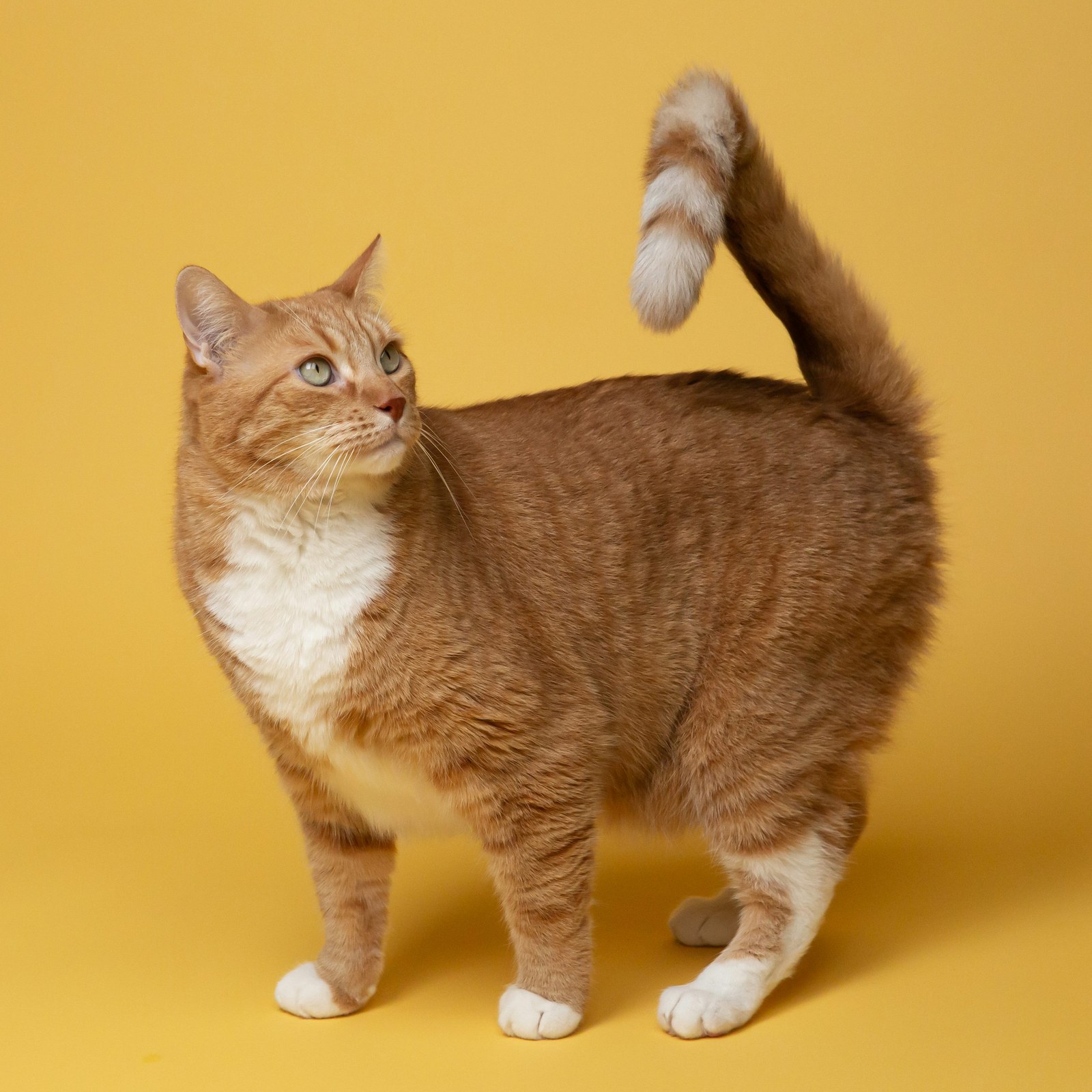
You can make a State Property meme AI video from one photo: upload a clear picture, choose reference mode or a scene, review the video settings and credit quote, then generate and download an MP4. The workflow also suits Hit the Road Dude and This Is Private Property-inspired remixes, with newly generated dialogue. You do not need video-editing experience, but you should review every finished result before sharing it.
What Is the State Property Meme AI Trend?
The State Property meme revolves around a disagreement over whether someone is standing on public or private property. The humor comes from a surprised reaction, a brief pause, and a final dismissal. AI remixes reinterpret that rhythm with different people, cats, dogs, and settings, including the familiar pickup-truck scene.
Some tools reproduce existing footage or reuse a soundtrack. Others create new scenes with synthetic dialogue. Understanding that difference helps you choose the right workflow. For more context, read our guide to the original State Property meme.
How to Make Your Own State Property Meme Video
StatePropertyMeme.org is a browser-based generator that turns a single photo into a fictional AI meme video. Here is how to create your own version.
Step 1: Upload a Photo
Choose a clear photo of yourself, an adult who has explicitly agreed to AI animation and synthetic dialogue, or your dog or cat. Use an image you have permission to upload and adapt.
For better results:
- Use a well-lit image with a visible face.
- Avoid heavy filters or motion blur.
- Keep one main subject clearly separated from the background.
- For pets, make sure the eyes, ears, and muzzle are visible.
The tool accepts JPG, PNG, and WebP images up to 10 MB. Human subjects must be consenting adults; minors, public figures, voice cloning, and deceptive impersonation are restricted.
Step 2: Choose Your Scene
Select reference mode to guide framing and motion from an available clip, or build a fresh version using one of six scenes:
- White pickup truck
- Front porch
- Farm tractor
- Golf cart
- Lakeside dock
- Ranch gate
The pickup scene matches a familiar AI-remix setting, while the other options offer creative variations. Reference mode guides a new generation; it does not guarantee an exact reproduction of the reference.
Step 3: Set Your Video Options
Choose your preferred video duration, orientation, and resolution. The studio offers 480p or 720p, with portrait 9:16 and landscape 16:9 options.
Both modes start with 15 seconds for the full-dialogue direction. Shorter settings create abbreviated reactions. Speech timing and lip sync can still vary.
You can also add a short creative direction to influence expression or movement. Try a simple instruction such as “pause before replying, then give one skeptical look.”
Step 4: Generate and Download
Review the displayed credit cost and submit your generation. Follow the saved task in video history; a slow response is not a reason to submit another paid attempt.
When the video is complete, preview the result, listen to the dialogue, and check the face, gestures, and scene. Download the finished MP4 when it is ready. If you want another version, change one setting or direction at a time.
A Real One-Photo Example
Here is the input photo used in a real golden-retriever generation from this application:
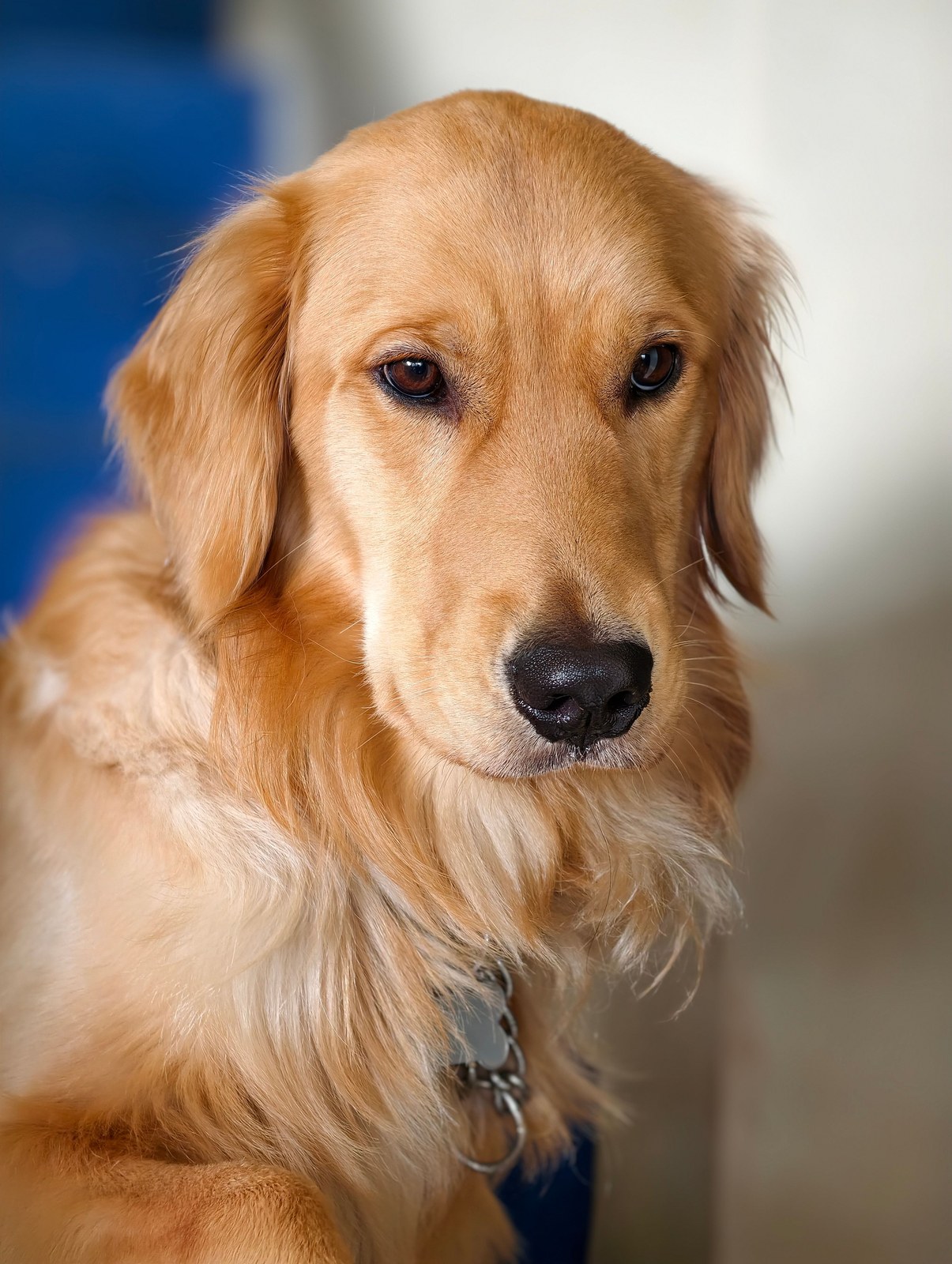
Input photo: golden retriever portrait on Pexels.
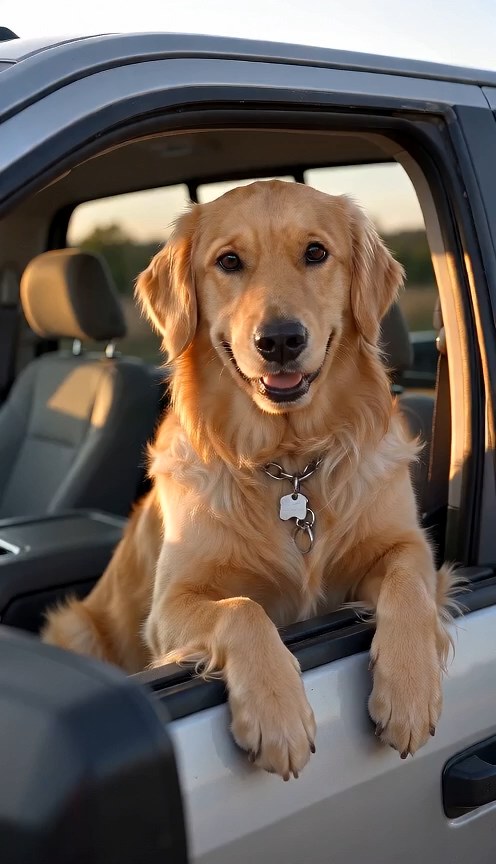
Watch the actual generated MP4 with audio.
This October 19, 2026 run used scene mode, dog, pickup, 15 seconds, 480p, and 9:16, with the Seedance 2 Mini model. The saved H.264/AAC MP4 measured 15.104 seconds and 496 × 864 pixels. This is a dated example, not a promise about every generation's quality or timing.
An earlier submission failed because an old upload URL was unreachable; that attempt's application credits were returned. Review the example's dialogue, motion, and facial consistency for yourself. Those creative qualities were not given a numerical score.
Can You Make a Hit the Road Dude Meme With a Cat or Dog?
Yes. A cat or dog can become the main character in an AI-generated version of the meme.
Pet photos work best as a starting point when the animal's face is clearly visible and the requested movement is simple. Read our cat and dog photo guide for more preparation tips.
AI-generated motion can introduce unusual paws, facial expressions, or body movements. Review the result before publishing.
Does It Use the Original Meme Audio?
No. StatePropertyMeme.org creates new AI-generated dialogue. It does not provide the original recording or clone the original speaker's voice.
The workflow is designed for fictional variations of the meme. If you need the exact original footage and soundtrack, check whether your chosen editing workflow supports those materials and whether you have the necessary permission to use them.
How Much Does It Cost?
StatePropertyMeme.org uses credits for generation, with one-time packs and subscription options. One-time packs do not require an active subscription.
At publication, a standard Seedance 2 Mini video at 480p, up to 15 seconds, uses 10 credits. At 720p, the rate is 3 credits per second, or 45 credits for 15 seconds. Check the current pricing and the quote displayed in the generator before submission; settings and rates can change.
Confirmed technical generation failures return the credits used. A completed result with creative imperfections may not qualify for an automatic refund.
Tips for Better AI Meme Videos
Start with one clear subject and a simple scene. Choose a short, recognizable reaction instead of requesting several simultaneous movements. Keep the face visible and leave room for natural gestures.
Review the finished video for facial consistency, dialogue timing, and unexpected artifacts. Every generation can vary, even when you use the same photo. Our AI prompt guide can help you refine the next attempt.
Frequently Asked Questions
Can I create a State Property meme video without editing experience?
Yes. The tool provides scene choices and a guided photo-to-video workflow.
Can I use someone else's photo?
Only with the necessary permission. Human subjects must be consenting adults who authorize AI animation and synthetic dialogue. The tool restricts uses such as deceptive impersonation.
Can I make a vertical video?
Yes. Portrait 9:16 and landscape 16:9 options are available in the studio.
Is the generated video guaranteed to match the original meme?
No. This is AI-generated content. Speech, gestures, timing, and facial consistency can vary.
Is generation free?
Generation uses credits. Review the current offers and the displayed quote before starting; this guide does not promise a free generation.
Create Your Own State Property Meme
Whether you want to put your cat behind the wheel of a pickup truck or create a new private-property confrontation, a single photo is enough to start.
Create your own State Property meme video.
Published October 26, 2026 by the StatePropertyMeme.org team. This is our product's own guide. Generated content is synthetic and results vary. Review our privacy policy and usage terms before uploading media.