
How to Make a State Property Meme from Your Photo
A step-by-step workflow for uploading a photo, choosing video settings, checking credits, following a task, and reviewing the finished clip.
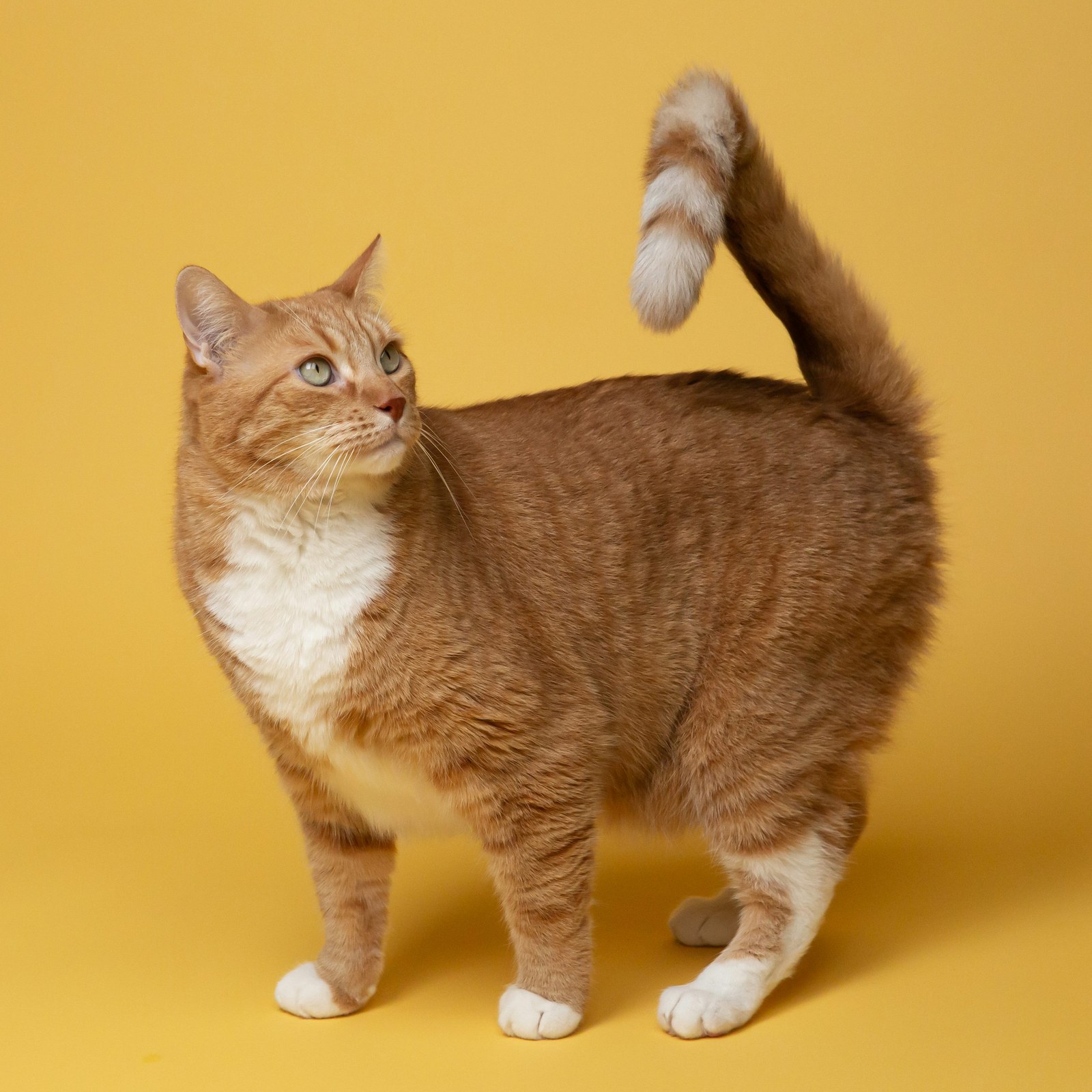
Current studio scope: pets and non-human scenes. Real-person photo animation, fabricated human speech/actions and face swaps are paused.
Start with one clear photograph and one simple joke. You do not need to plan an entire film: a recognizable subject, a brief challenge, and a skeptical response can be enough. This walkthrough takes you from the source photo to a downloadable video while keeping the important decisions visible.
1. Prepare one subject
Choose a dog or cat photographed in even light. Real-person generation is paused; do not upload human photographs for generation. Keep the face large enough to see, with room around the head. Avoid group shots, heavy filters, covered mouths, or text across the image. Use a photo you are entitled to upload and adapt. If your subject is a pet, read the photo advice before choosing between similar pictures.
Open the video studio and upload your image. Sign in when required to submit a task and keep it in your history. The studio reports whether generation is available; if the model or storage service is not ready, wait for that status to change before expecting a real output.
2. Choose the kind of take
Select the subject type, then choose scene mode or reference mode. Scene mode offers pickup, porch, tractor, golf cart, dock, and ranch settings. Reference mode uses the currently available reference clip as a performance guide. Do not expect an exact replacement of every frame or the original recorded soundtrack: the output and audio are newly generated.
Add a short direction if needed. “Pause before replying and give one skeptical look” is a useful starting point. Avoid asking for several location changes or multiple characters in the same short clip.
3. Review the settings and quote
Choose 9:16 for a tall frame or 16:9 for a wider scene. Five seconds suits a brief reaction; fifteen seconds gives the complete dialogue more space, with ten seconds available between them. Start at 480p for exploration and consider 720p after you have settled on the idea.
The current quote is the source of truth for credit use. Check it after changing settings. Your existing subscription supplies credits according to its terms, and one-time credit packs do not require an active subscription. See pricing for the current plans rather than relying on a number copied into a tutorial.
4. Submit once and follow the task
After submitting, watch the task status or return through video history. Refreshing the page is not a reason to submit another paid attempt. If a task remains processing, check its saved status instead of assuming that a slow response means failure.
Confirmed failures enter the failure-refund flow. A completed video that uses an unexpected expression is a creative result, not automatically a failed job. Generation time varies with the provider and requested settings.
5. Review, download, and refine
Watch once for the joke, once for the picture, and once for the audio. Check the ending, the subject’s recognizable features, and whether the mouth movement supports the dialogue. Download a successful result when it is ready. If you want another attempt, change one variable so the comparison is useful. The prompt guide helps you turn that review into a more precise next direction.